How to Install Alarm Clock on Chrome for Alarms, Focus, and Reminders
Install Alarm Clock on Chrome with a full setup guide for alarms, reminders, world clocks, focus timers, notes, and privacy-aware daily planning.
Published
July 26, 2026
Reading Time
2 min read
Article Size
355+ words
Social Tags
Share This Article
Article Overview
This article is part of the NHR Soft knowledge base and is structured to help readers understand the topic quickly, review practical steps, and share product or engineering insights with confidence.
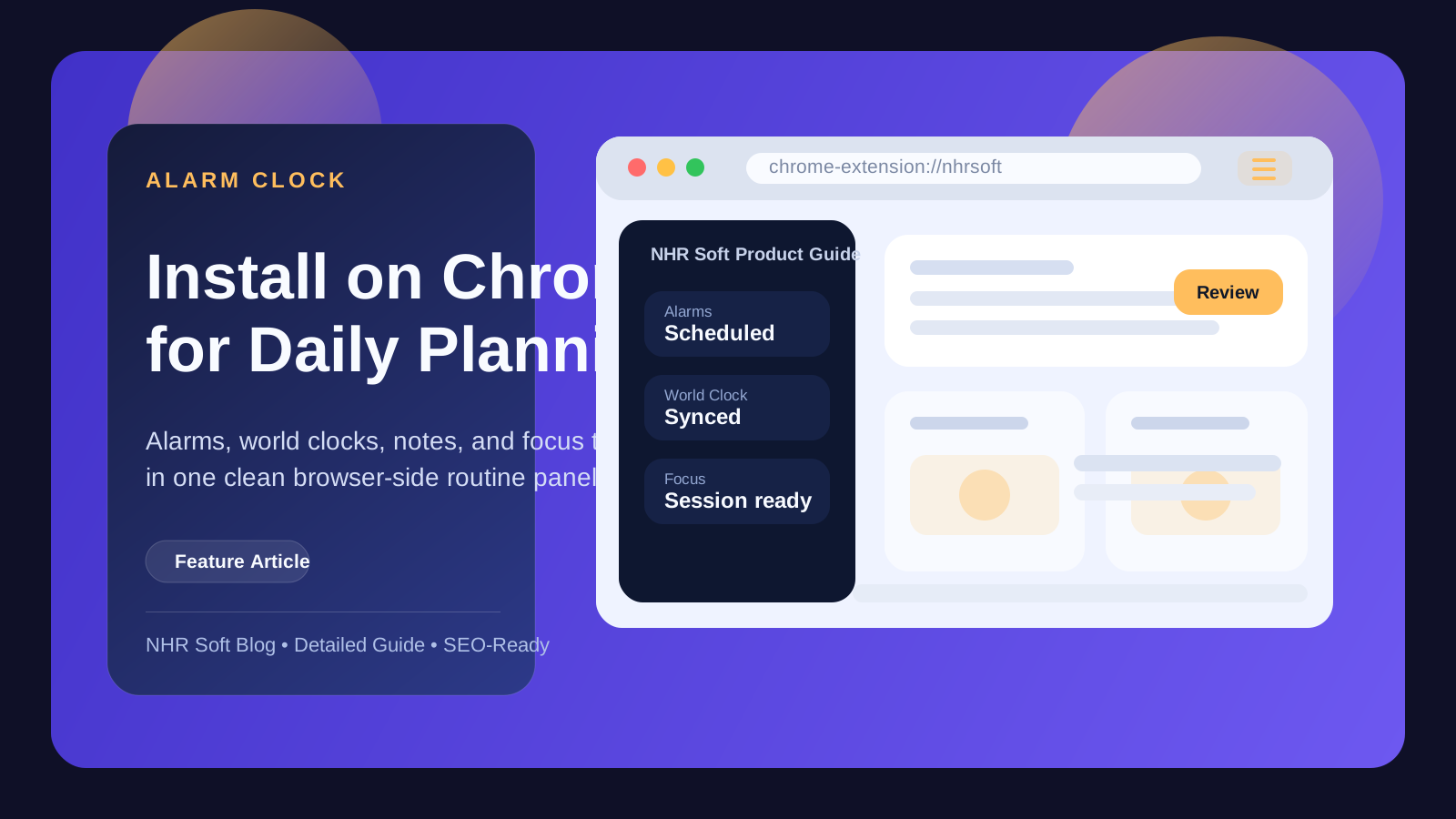
Alarm Clock combines alarms, reminders, world clocks, notes, and focus tools in one Chrome-friendly experience. It is a strong fit for users who want a clean daily planning tool without extra accounts.
Install guide
- Visit the main landing page at nhrsoft.com/alarm-clock.
- Open the detail page at nhrsoft.com/products/alarm-clock if you want the full screenshot gallery first.
- Follow the install or access button provided there.
- Pin Alarm Clock in the Chrome toolbar so alarms stay easy to reach.
Best first setup after install
- create one morning alarm and one focus timer
- add your main city plus any client or team time zones
- store quick notes and reminders in the same panel
- adjust theme and sound choices to match your workflow
Important support links
Use the Alarm Clock support page for troubleshooting and the privacy policy for data handling details.
Why users choose Alarm Clock in Chrome
Some users want more than a simple alarm. They want one place for reminders, time awareness, short notes, and focus sessions without juggling several tabs or desktop widgets. Alarm Clock is built around that broader daily-planning need, which is why the product page emphasizes routines instead of a single feature.
Good first-day setup
- Create a daily alarm you can immediately test.
- Add one or two reminder entries for routine tasks.
- Set up a focus timer for a short work session.
- Add the time zones you check most often for remote work or clients.
- Store one quick note so you understand how the panel behaves during normal use.
Who this extension is best for
- remote workers who track more than one time zone
- students balancing classes, reminders, and timed sessions
- busy professionals who want a small planning tool in the browser
- users who prefer a lightweight routine panel over a large scheduling app
FAQ
Is Alarm Clock only for alarms?
No. It is better understood as a compact daily-planning companion with alarms as one part of the workflow.
Should I read the support and privacy pages first?
Yes, especially if you want to understand data handling, reminders behavior, and the intended usage model before adopting it daily.
Public Discussion
Name and Comment
Share your thoughts on this article. Your name and comment will be published right away on the page.
Published Comments
0
Start the conversation
No comments yet. Be the first person to leave a public note on this article.