Website Detector Help

Support

Help with scanning websites, understanding confidence scores, managing permissions, saving results, and reporting detection issues in Website Detector.

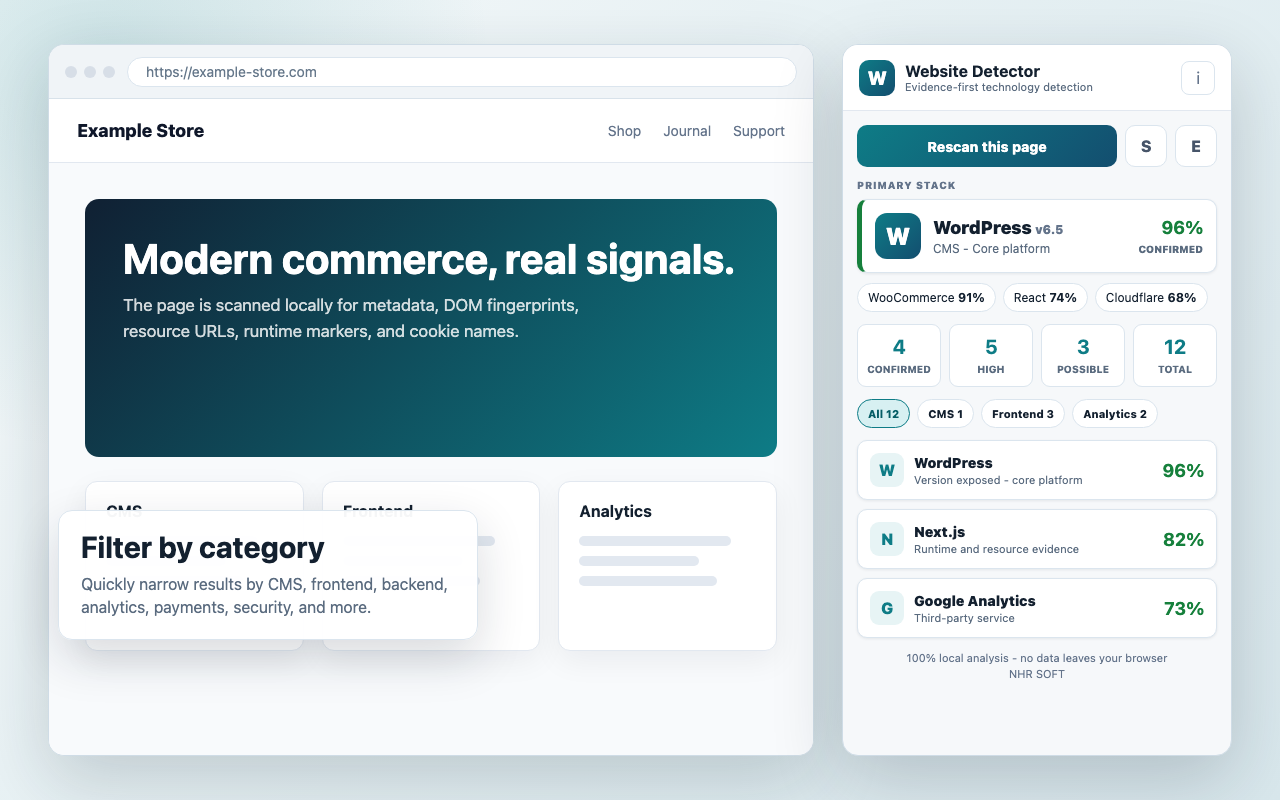
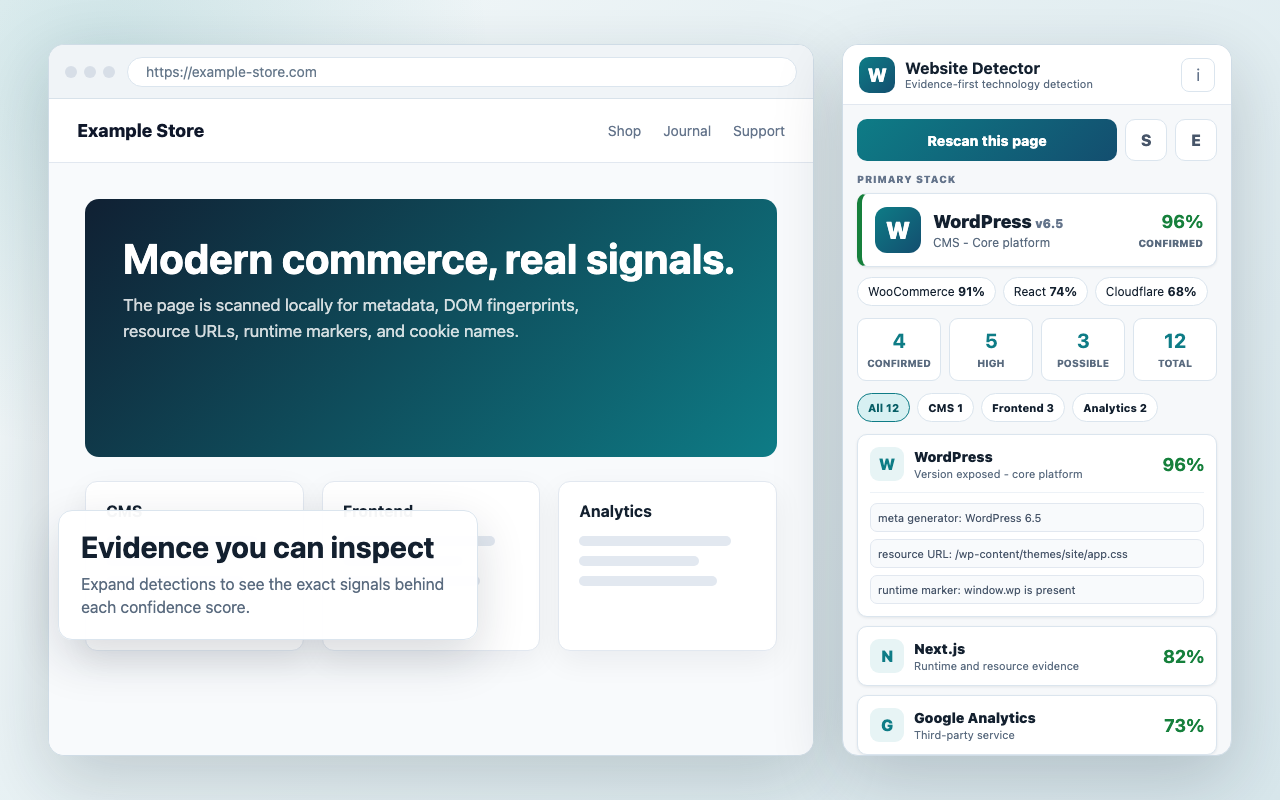
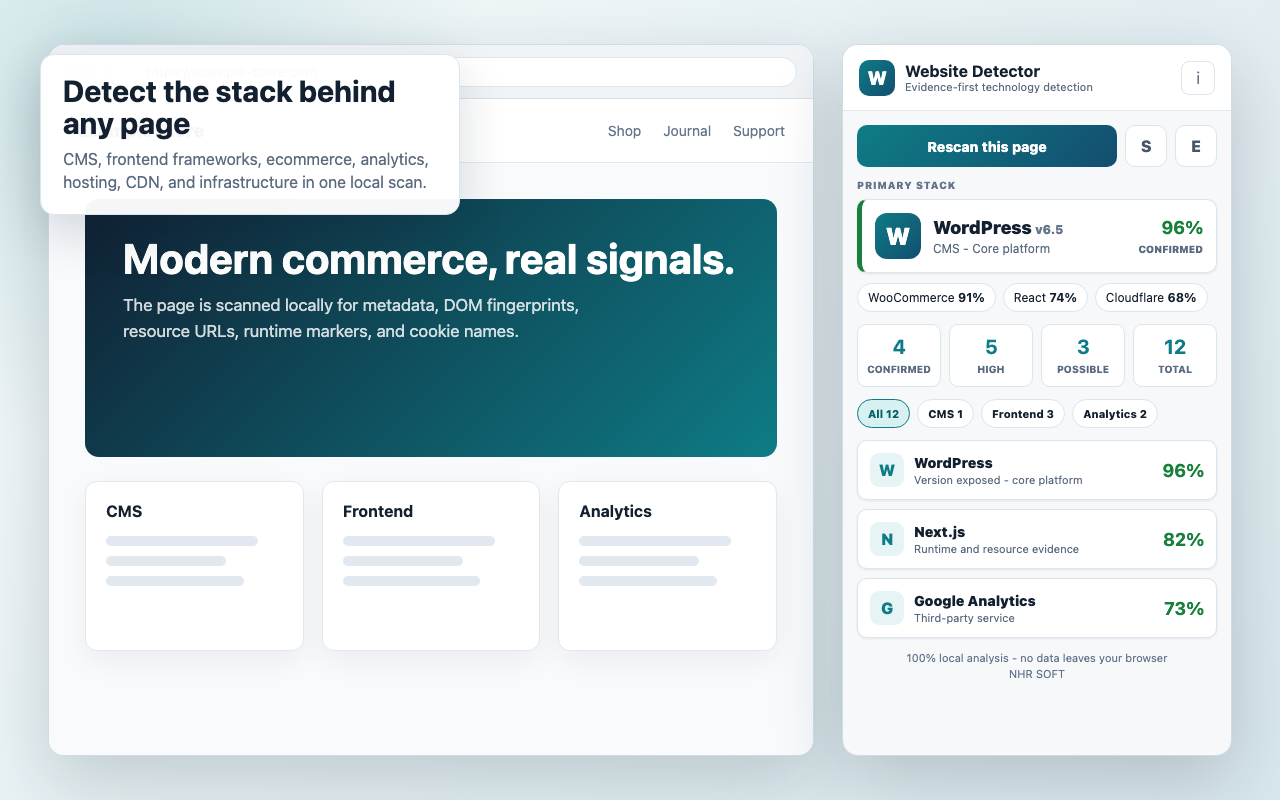
Website Detector scan result screenshot
play_circle

Getting started

  • check_circleOpen the page you want to inspect, then click Website Detector to start a scan.
  • check_circleUse the side panel to review the primary stack, evidence groups, and confidence levels.
  • check_circleSave a result only if you want a local record for comparison or export.
manage_search

Understanding results

  • check_circleConfirmed means multiple strong signals were found on the page.
  • check_circleHigh and Possible indicate partial or indirect evidence.
  • check_circleVersion numbers are shown only when the page exposes them clearly.
shield_lock

Permissions and access

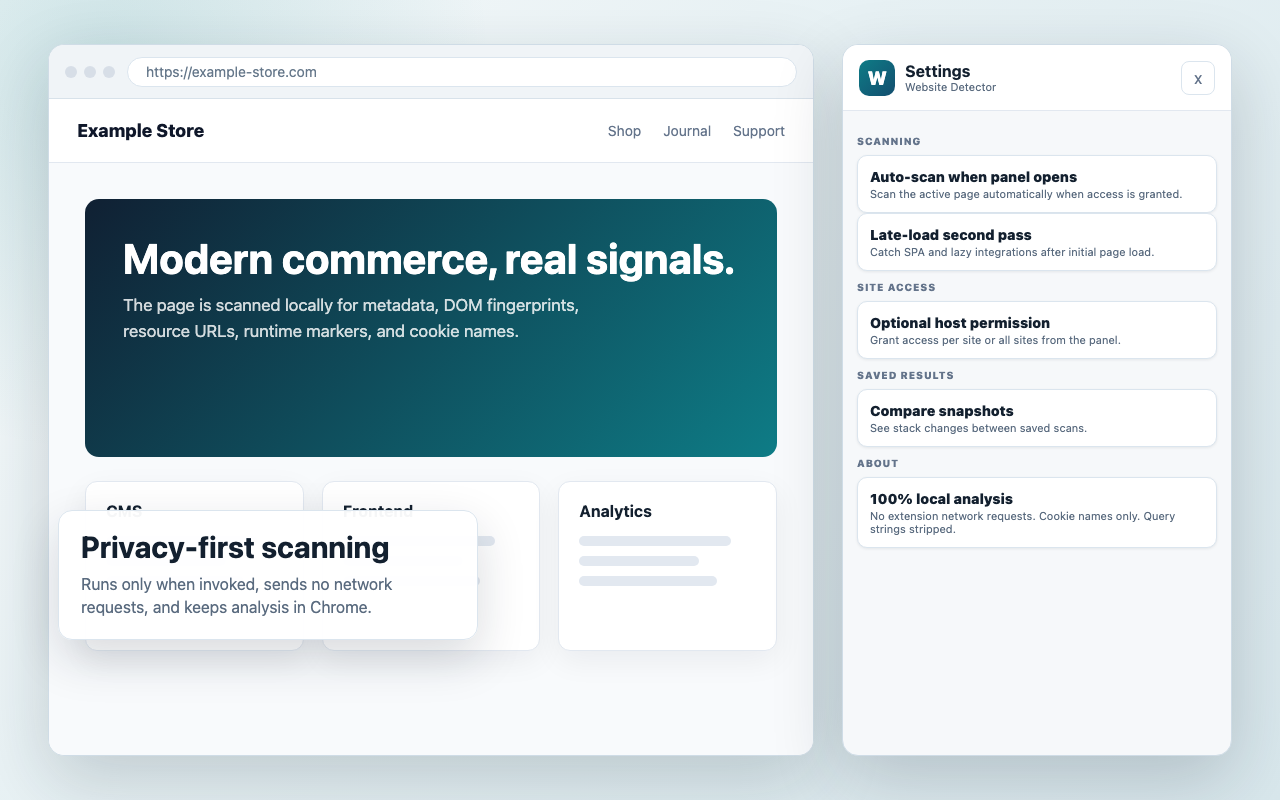
  • check_circleBy default, scans run only when you invoke the extension on a page.
  • check_circleOptional host permissions can be granted for repeat scanning on chosen sites.
  • check_circleThe extension does not modify page content or send scan data anywhere.
save

Saved scans and export

  • check_circleUse saved results to compare technology changes over time.
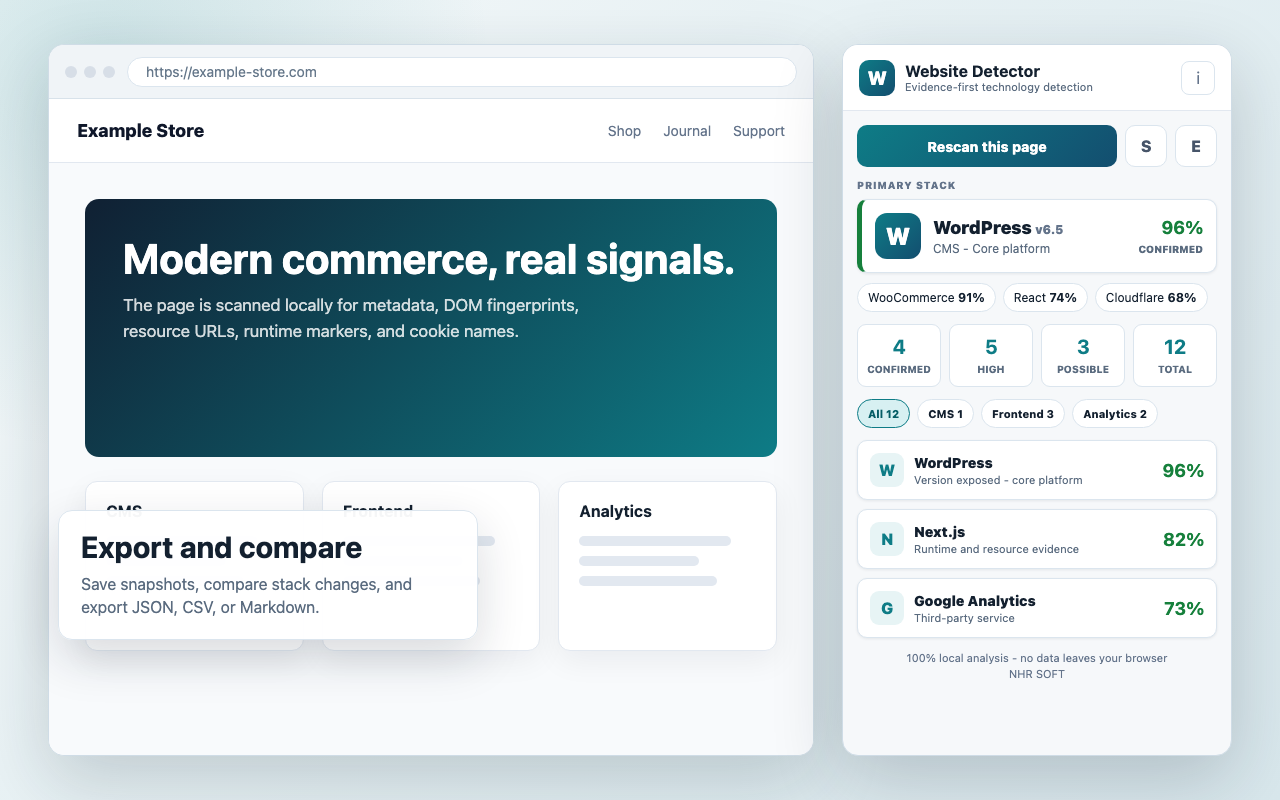
  • check_circleExport scans to JSON, CSV, or Markdown for research and documentation.
  • check_circleClear stored results at any time from the extension settings or local storage tools.

Frequently asked questions

Why does a site show "Possible" instead of "Confirmed"?

Some websites hide or remove visible framework markers in production builds, so the extension reports the strongest evidence it can observe honestly.

Does Website Detector scan automatically?

It scans when you explicitly invoke it, unless you grant optional site access for smoother repeat scanning.

Can it read passwords or form submissions?

No. It does not inspect form values, passwords, or authentication data.

Can I export scan results?

Yes. Saved scans can be exported to JSON, CSV, or Markdown.

How do I report a detection issue?

Email support@nhrsoft.com with the website URL, what you expected to detect, and a screenshot of the result if possible.
Product Screens

Shared Image Set
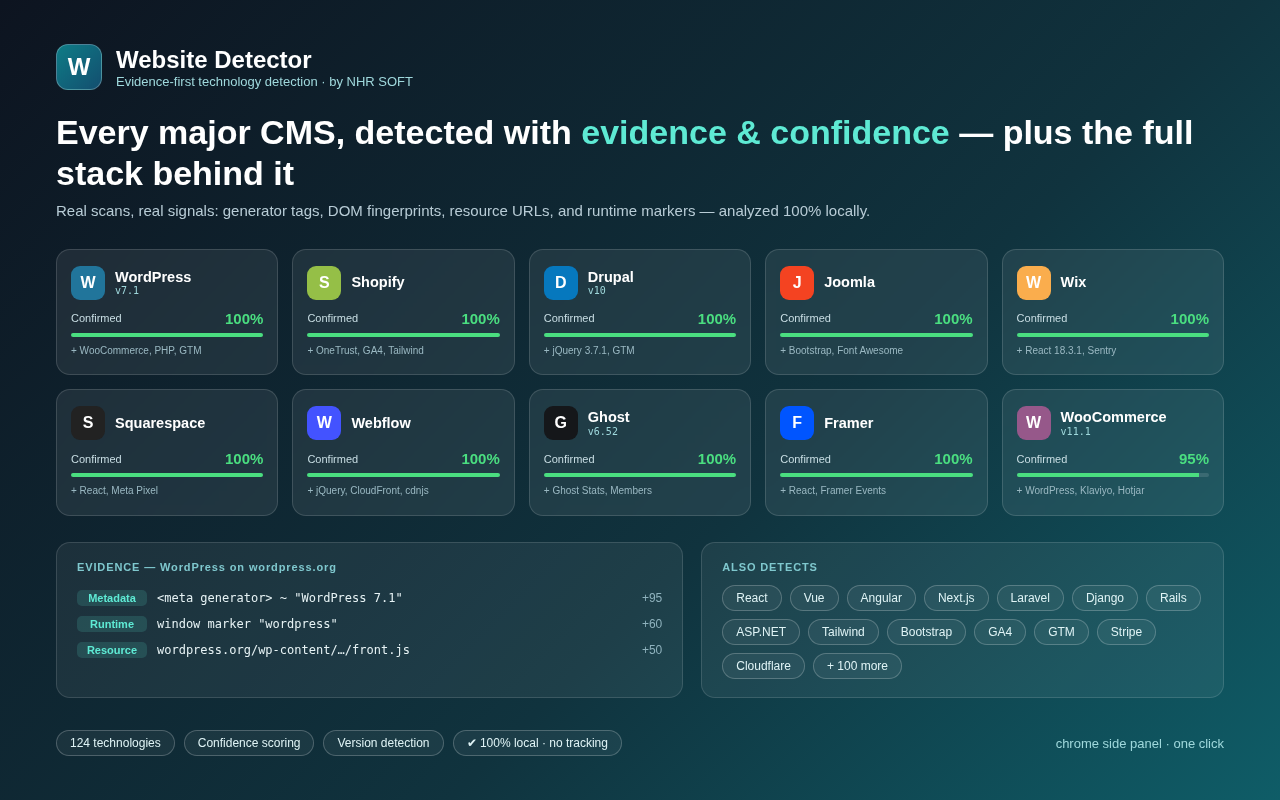
Website Detector interface screenshot