How to Install CalmBrowser on Chrome for a More Comfortable Web Experience
A complete CalmBrowser Chrome installation guide covering accessibility-focused setup, comfort settings, reading support, reduced-motion controls, and privacy review.
Published
July 26, 2026
Reading Time
2 min read
Article Size
358+ words
Social Tags
Share This Article
Article Overview
This article is part of the NHR Soft knowledge base and is structured to help readers understand the topic quickly, review practical steps, and share product or engineering insights with confidence.
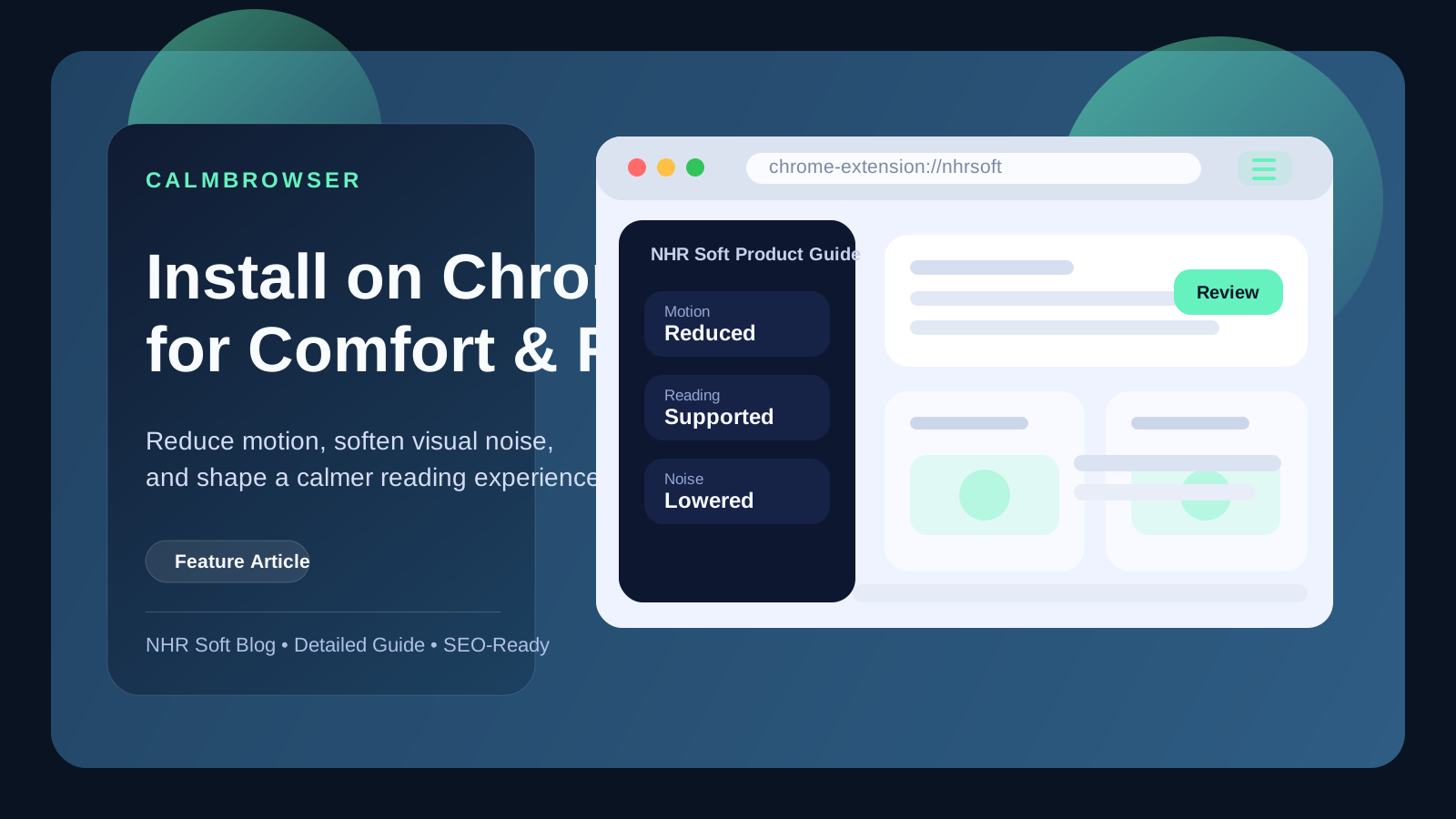
CalmBrowser is an accessibility-focused Chrome extension built to help users reduce motion, lower sensory load, and make reading on the web more comfortable.
Install CalmBrowser
- Open the product landing page at nhrsoft.com/calmbrowser.
- Review the feature summary and supported controls.
- Open the detail page at nhrsoft.com/products/calmbrowser if you want more screenshots before installing.
- Use the product action button to begin the install flow and then pin the extension.
Recommended first settings
- pause motion and autoplay on visually busy pages
- soften brightness and reduce distracting media
- enable focus mode when reading longer content
- try text-to-speech and reading support for dense pages
Review these pages too
Because CalmBrowser is an accessibility and comfort product, it is worth reading both the privacy policy and the support page before using it across important daily sites.
Who CalmBrowser is designed for
CalmBrowser is especially useful for users who feel overwhelmed by motion-heavy pages, autoplay media, visual clutter, or long-form reading fatigue. It is not only an accessibility tool in the strict sense. It is also a comfort tool for people who want a more controlled and less noisy browsing experience inside Chrome.
Recommended setup after installation
- Pin the extension in Chrome so you can adjust settings quickly when a page becomes distracting.
- Test motion-reduction controls on a media-heavy website.
- Adjust reading or focus settings on a text-heavy page.
- Try comfort options such as softer visuals or reduced autoplay where available.
- Review support and privacy pages before using it broadly across your daily browsing routine.
How to evaluate whether it helps
- Compare the same page before and after comfort settings are applied.
- Use it during a real reading session instead of a quick demo.
- Test on sites that normally feel visually noisy or cognitively tiring.
- Keep only the settings that make your workflow calmer rather than enabling everything at once.
FAQ
Is CalmBrowser only for accessibility-sensitive users?
No. It is useful for anyone who wants a quieter, more controlled browsing experience.
Why should I read the privacy page first?
Because users relying on comfort or accessibility tooling often want a clear understanding of permissions and data behavior before long-term use.
Public Discussion
Name and Comment
Share your thoughts on this article. Your name and comment will be published right away on the page.
Published Comments
0
Start the conversation
No comments yet. Be the first person to leave a public note on this article.