Notebook Highlighter Help

Support

Help with highlighting websites and PDFs, adding notes and tags, using reader mode, exporting material, searching across saved reading, and understanding optional AI or sync behavior.

Notebook Highlighter PDF support screenshot
play_circle

Install and start reading

  • check_circleOpen Notebook Highlighter from the Chrome toolbar and keep the side panel available while you read.
  • check_circleSelect text on a page to create a highlight, then use the sidebar to attach a note or tag.
  • check_circleUse the library to browse saved material across pages when you want to revisit older reading.
edit_note

Highlight websites and PDFs

  • check_circleWebsite highlights are restored automatically when you return to the same page URL.
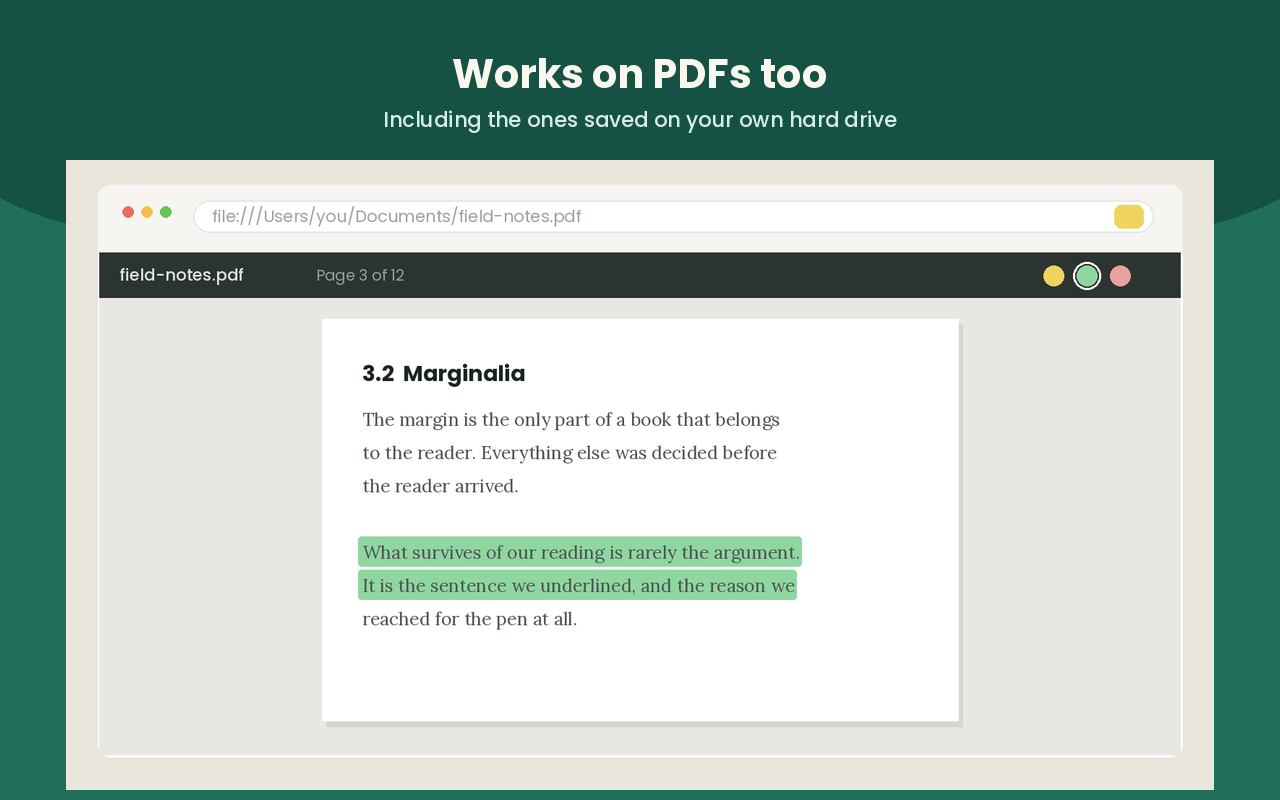
  • check_circlePDF highlights work inside the bundled PDF viewer, including local PDF files when Chrome file URL access is enabled.
  • check_circleIf a page is heavily dynamic, reload it once after creating a highlight so anchors settle correctly.
search

Search, export, and organize

  • check_circleSearch across highlight text, notes, tags, page titles, and bookmarks from the library.
  • check_circleUse export when you want Markdown, HTML, PDF, Obsidian, Notion, or Capacities output.
  • check_circleReader mode creates a cleaner article view that can also be saved for offline re-reading.
psychology

AI, sync, and reminders

  • check_circleAI summary and chat stay off unless you add your own API key and explicitly trigger the feature.
  • check_circleCustom sync requires your own endpoint URL. Notebook Highlighter does not provide a developer cloud backend.
  • check_circleReminder notifications depend on Chrome notification permission and the extension alarms feature staying enabled.

Frequently asked questions

Does Notebook Highlighter work without an account?

Yes. Core features are designed to work offline-first with local browser storage and no sign-up.

Why does the extension ask for access to all websites?

A highlighter has to work on the page you choose to annotate. The extension uses page access to capture your selected text and restore saved highlights later.

Can I highlight PDFs stored on my computer?

Yes. Local PDF annotation works when the file URL permission is enabled in Chrome for the extension.

Does Notebook Highlighter send my reading data to NHR Soft?

No. NHR Soft does not run a backend for this extension. Data leaves the browser only when you choose an optional AI, sync, or third-party export feature.

How do I report a bug?

Email support@nhrsoft.com with the page URL or PDF type, the action you were taking, your Chrome version, operating system, and a screenshot if possible.