ReadEase Help

Support

Help for dyslexia-friendly typography, reading ruler, line focus, calm mode, clean reading view, read aloud, dictionary, AI simplify, color tools, and local privacy settings.

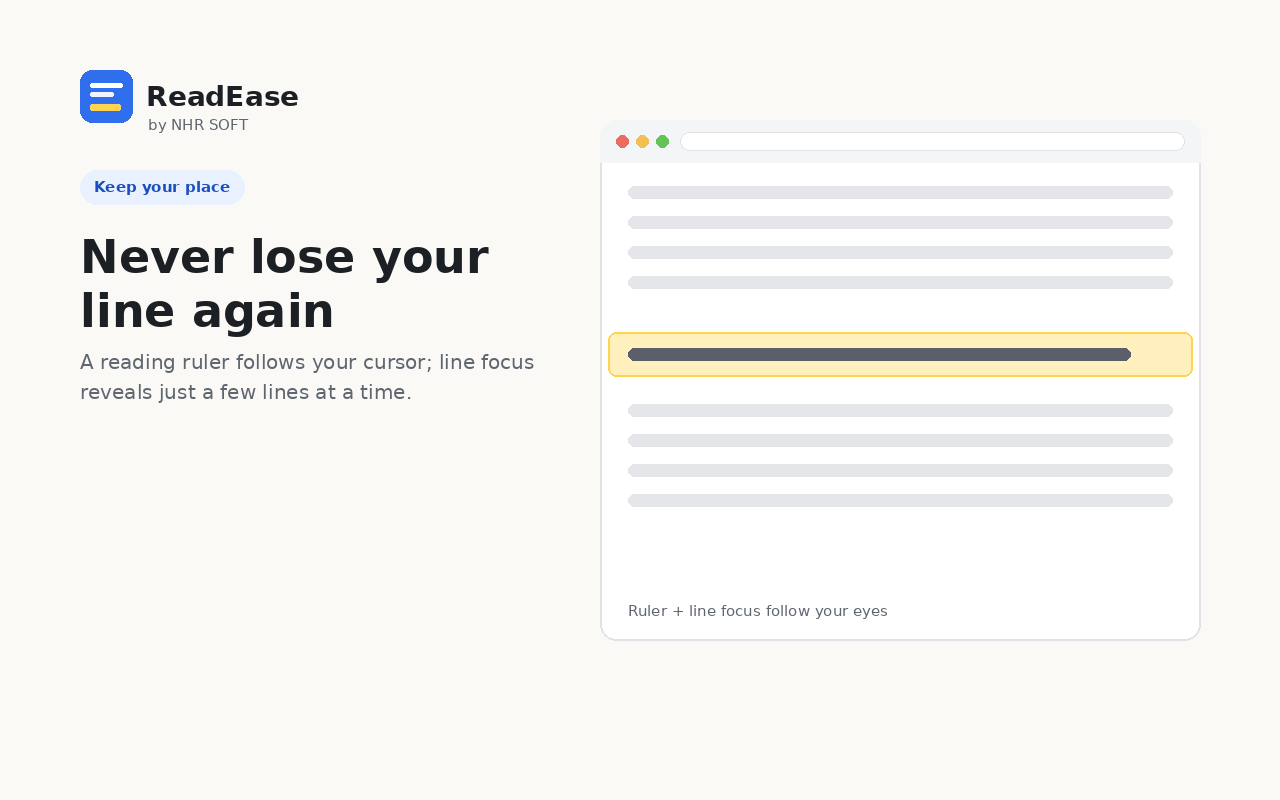
ReadEase focus controls support screenshot
extension

Install and start

  • check_circleInstall ReadEase from the Chrome Web Store when the listing is available.
  • check_circlePin the ReadEase icon from the Chrome extensions menu.
  • check_circleOpen an article or long page, then open ReadEase from the toolbar.
  • check_circleUse the Text tab to apply the dyslexia-friendly preset or adjust spacing manually.
horizontal_rule

Keep your place

  • check_circleUse Alt+R to toggle the reading ruler.
  • check_circleClick a line to lock the ruler, then use the up and down arrow keys to step line by line.
  • check_circleUse line focus to reveal 1, 3, or 5 lines at a time.
  • check_circleUse the pacer and progress bar when reading longer articles.
record_voice_over

Listen and look up words

  • check_circleSelect text and press Alt+S, or use the right-click menu to read aloud.
  • check_circleUse built-in system voices for free local read aloud.
  • check_circleEnable optional cloud voices only if you want to use your own Google Cloud API key.
  • check_circleTurn on dictionary support, then double-click a word for a plain definition and hear it spoken.
restart_alt

Restore or reset

  • check_circleTurn Apply off to remove typography changes on the current page.
  • check_circleUse Clean View again or press Escape to close the clean reading overlay.
  • check_circleUse Calm mode again to restore the original page behavior.
  • check_circleClear Chrome extension storage or remove ReadEase if you want to delete local settings.

Frequently asked questions

Is ReadEase only for dyslexia?

No. It is designed for dyslexia-friendly reading, but the spacing, ruler, calm mode, read aloud, and color tools may also help readers with visual stress, attention fatigue, or general reading strain.

Does ReadEase change every website automatically?

ReadEase can store global settings and optional per-site overrides. You control when settings apply and can turn them off.

Does read aloud send text to NHR Soft?

No. Built-in read aloud uses Chrome text-to-speech. Optional cloud voices send only the selected text you choose to Google Text-to-Speech using your own API key.

Why does ReadEase need access to all websites?

Reading help needs to work on the page you are reading. Host access lets ReadEase apply fonts, spacing, ruler, calm mode, clean view, and highlights. It is not used to collect browsing history.

Why does a page not change?

Chrome extensions cannot run on chrome:// pages or the Chrome Web Store. Some PDF viewers, protected pages, and Shadow DOM-heavy applications may limit page changes.

How do I report an issue?

Email support@nhrsoft.com with the page URL, Chrome version, operating system, the ReadEase feature involved, and what happened.