How to Install NHR Soft Chrome Extensions Safely in Google Chrome
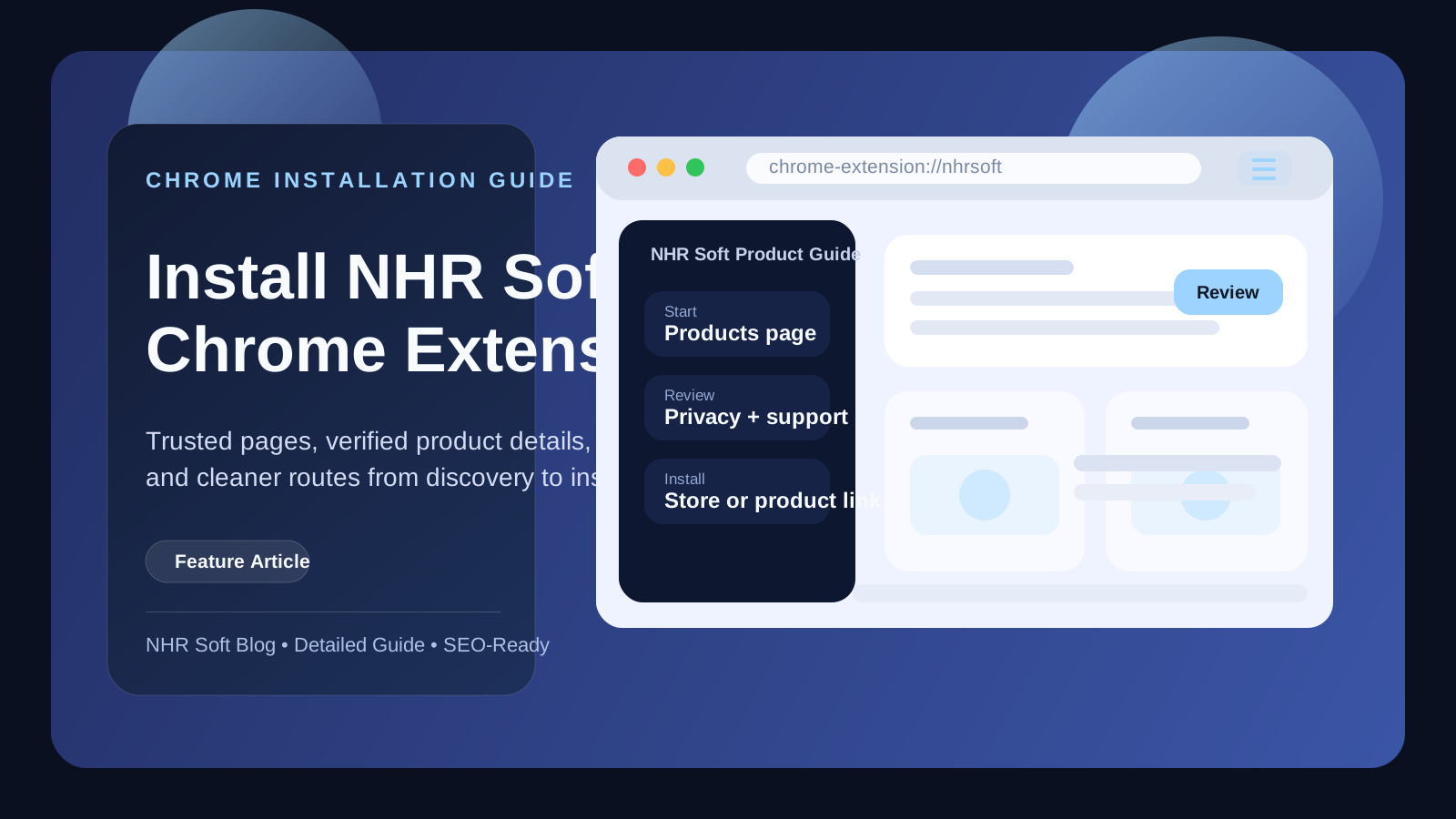
A full NHR Soft Chrome extension installation guide covering trusted download sources, permission checks, product verification, privacy review, and support links before install.
Published
July 25, 2026
Reading Time
3 min read
Article Size
541+ words
Social Tags
Share This Article
Article Overview
This article is part of the NHR Soft knowledge base and is structured to help readers understand the topic quickly, review practical steps, and share product or engineering insights with confidence.
If you searched for NHR Soft Chrome extension, this guide is the fastest place to start. We publish product pages, support pages, and privacy pages so that users can confirm what a tool does before installing it in Chrome.
Install from trusted sources only
We recommend installing from one of these sources:
- the official NHR Soft website at nhrsoft.com/products
- an official product landing page such as PromptPin or Alarm Clock
- the Chrome Web Store when a product already has a published listing
Before you click install
Open the product page and check four things:
- Purpose — make sure the extension matches the workflow you need.
- Permissions — verify whether the extension uses only activeTab, storage, or other limited permissions.
- Privacy — review the product's privacy policy before installing.
- Support — confirm there is a support page or contact path if you need help later.
Where to start
These pages currently cover the most common NHR Soft Chrome products:
- Simple Calculator product detail
- PromptPin product detail
- Reddit Digest product detail
- Website Detector product detail
- Alarm Clock product detail
- CalmBrowser product detail
Need help after installation?
Use the product support or privacy pages when available, or go directly to NHR Soft Support. That gives Google and users a clearer trail from search result to product page to support page, which is exactly how software discovery should work.
Why this guide exists
Users often discover browser tools through Google before they discover the product catalog. That can create confusion if they land on the wrong page first. This guide brings the key steps together in one place so you can confirm the extension name, review what the tool does, and move from product discovery to installation without uncertainty.
Step-by-step installation checklist
- Start from the NHR Soft products page or the specific product page.
- Read the summary so you understand whether the tool is for productivity, developer research, accessibility, or daily planning.
- Open the detail page and review screenshots, workflow notes, and related legal pages.
- When available, continue to the Chrome Web Store listing and verify the extension name matches the product page.
- Install, pin the extension, and test it on a safe everyday workflow before relying on it heavily.
What to review before installing any extension
- Permissions: understand whether the extension needs tab access, storage, or active-page interaction.
- Privacy: review how data is stored, whether information stays local, and whether there is network communication.
- Support: make sure a support route exists if you hit a bug or want to report feedback.
- Product clarity: the product page should explain who the tool is for and what problem it solves.
Best product starting points
If you already know which tool you need, go directly to its product page. If not, start from the NHR Soft catalog and compare products first. That is especially helpful when deciding between tools such as PromptPin, Website Detector, Alarm Clock, CalmBrowser, and Simple Calculator, because each serves a different daily workflow.
FAQ
Should I install from random third-party pages?
No. Use official NHR Soft pages or the verified Chrome Web Store listing connected from them.
How do I know which extension is right for me?
Read the product detail page first. The workflow examples and screenshots are the fastest way to understand fit.
Public Discussion
Name and Comment
Share your thoughts on this article. Your name and comment will be published right away on the page.
Published Comments
0
Start the conversation
No comments yet. Be the first person to leave a public note on this article.